
2019
Tkinter Scientific Calculator


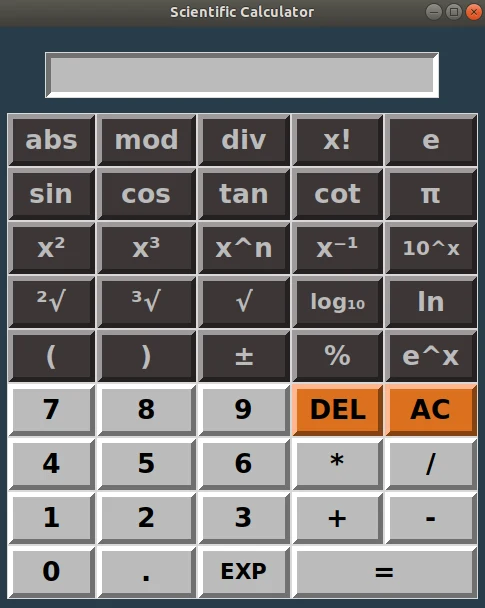
The idea behind this project is to create a scientific calculator which will be easy to use by any user. Anyone can execute from the very basic arithmetic operations to some more complex mathematical functions.
Tkinter Scientific Calculator
Import libraries
In order to avoid the full use of a Python editor or a command line window, we are going to create a basic GUI. The Tkinter package (“Tk interface”) is the standard Python interface to the Tcl/Tk GUI toolkit.
We also use the math and numpy libraries in order to build basic mathematical functions (sin, cosine, log, …)
from tkinter import *
import math
import numpy as np
GUI Creation – Initialization
At first we build the general structure of the GUI which will contain the buttons.
tk_calc = Tk()
tk_calc.configure(bg="#293C4A", bd=10)  # Background color and padding
tk_calc.title("Scientific Calculator")   # GUI title
Functions
We define some necessary mathematical functions which we are going to use inside our functions’ buttons. For example, the percent() function finds the result of the division of a number by 100.
def percent():
    global calc_operator
    temp = str(eval(calc_operator + '/100'))
    calc_operator = temp
    text_input.set(temp)
We also define some functions for the correct operation of our calculator. For example, we define the button_delete() function which we use for the DEL button. This function allows the user to delete, one by one from the end, the digits that have been entered on the calculator’s entry screen.
def button_delete():
    global calc_operator
    text = calc_operator[:-1]
    calc_operator = text
    text_input.set(text)
Button construction
Now it is time to fill our calculator with buttons. We place one button for each function, each operation and for each one of the 10 digits (0 to 9). The basic syntax of a Tkinter button is the following.
button = Button(container, *options)In order to place each row of buttons we use the grid method. For example, the 7th row of our calculator contains digits 4, 5, 6 and the operators * and /.
button_4 = Button(tk_calc, button_params_main, text='4', command=lambda:button_click('4')).grid(row=7, column=0, sticky="nsew")
button_5 = Button(tk_calc, button_params_main, text='5', command=lambda:button_click('5')).grid(row=7, column=1, sticky="nsew")
button_6 = Button(tk_calc, button_params_main, text='6', command=lambda:button_click('6')).grid(row=7, column=2, sticky="nsew")
mul = Button(tk_calc, button_params_main, text='*', command=lambda:button_click('*')).grid(row=7, column=3, sticky="nsew")
div = Button(tk_calc, button_params_main, text='/', command=lambda:button_click('/')).grid(row=7, column=4, sticky="nsew")
Some explanations for each button and the function it represents are the following:
1st row
- abs — The absolute value of a number (e.g. abs(-5) = 5)
- mod — From modulo. The operation to find the remainder of the division of one number by another. In Python we use the symbol
%(e.g. 5 mod 2 = 5 % 2 = 1) - div — Floor division returns the result of the division rounded down to the nearest integer. In Python we use the symbol
//(e.g. 8 div 3 = 8 // 3 = 2) - x! — The factorial of the number x (e.g. 4! = 24)
- e — Euler’s number. A mathematical constant approximately equal to 2.71828
2nd row
- sin — Sine of an angle θ in degrees (e.g. sin(90) = 1)
- cos — Cosine of an angle θ in degrees (e.g. cos(180) = -1)
- tan — Tangent of an angle θ in degrees (e.g. tan(45) = 1)
- cot — Cotangent of an angle θ in degrees (e.g. cot(45) = 1/tan(45) = 1)
- π — Archimedes’ constant, defined as the ratio of a circle’s circumference to its diameter. Approximately equal to 3.14159.
3rd row
- x² — x raised to the power of 2 (e.g. 4² = 16)
- x³ — x raised to the power of 3 (e.g. 5³ = 125)
- xn — x raised to any power (e.g. 2⁴ = 16)
- x-1 — x raised to the power of (-1). The inverse of x (e.g. 2-1 = 0.5)
- 10x — Powers of 10 (e.g. 10³ = 1000)
4th row
- ²√ — Square root of a number (e.g. ²√144 = 12)
- ∛ — Cube root of a number (e.g. ∛8 = 2)
- n√ — Any root of a number (e.g. ⁴√16 = 2)
- log10 — The logarithm of a number with base 10 (e.g. log10(1000) = 3)
- ln — The logarithm of a number with base e (e.g. ln(e) = 1)
5th row
- ( — Left parenthesis
- ) — Right parenthesis
- ± — Change the sign of a number
- % — Find the percentage of a number (e.g. 5% = 0.05)
- ex — Exponential function (e.g. e² ≈ 7.389)
6th, 7th, 8th & 9th rows
- The basic number buttons (0 to 9)
- The basic math operators (
+,-,*,/) - The equal sign (
=) and decimal point (.) - DEL — Deletes one or more digits from the end of the entry
- AC — Clears the whole entry
- EXP — Multiplies any number by a power of 10 (e.g. 2 * 103 = 2000)
Tkinter mainloop
The mainloop() method plays a vital role in Tkinter, as it is the core application loop that waits for events and helps update the GUI — in simple terms, this is event-driven programming. If mainloop() is not called, nothing will appear on the screen window.
tk_calc.mainloop()For more details visit Github link.