
2021
Virtual Drawing


Related Links
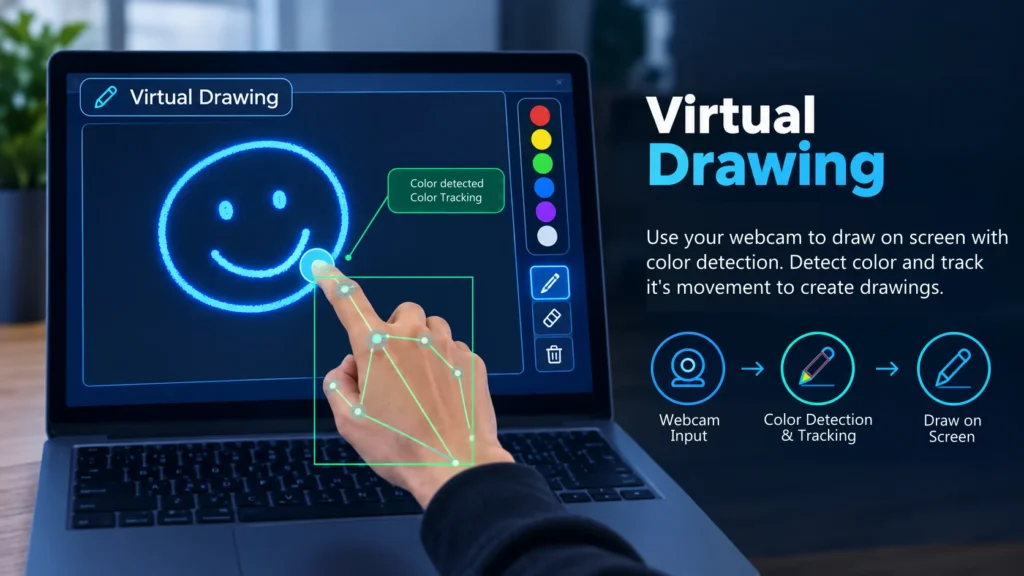
Real time drawing with color detection and tracking using a camera. User can draw anything on screen with different colors. The final drawing can be saved as an image file on the computer.
For this implementation we are using the Python language. We also need some packages to import. The basic package that we are using for color detection is OpenCV.
Feel free to check the following video on YouTube, for a better and visual understanding of this project and it’s concepts.
Two Project windows
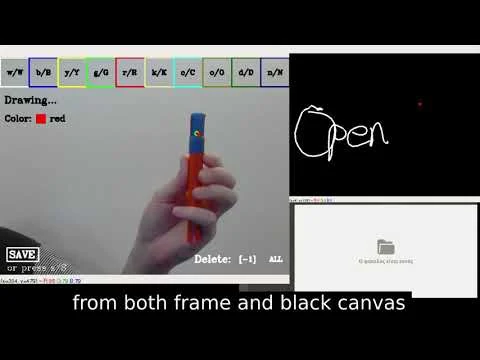
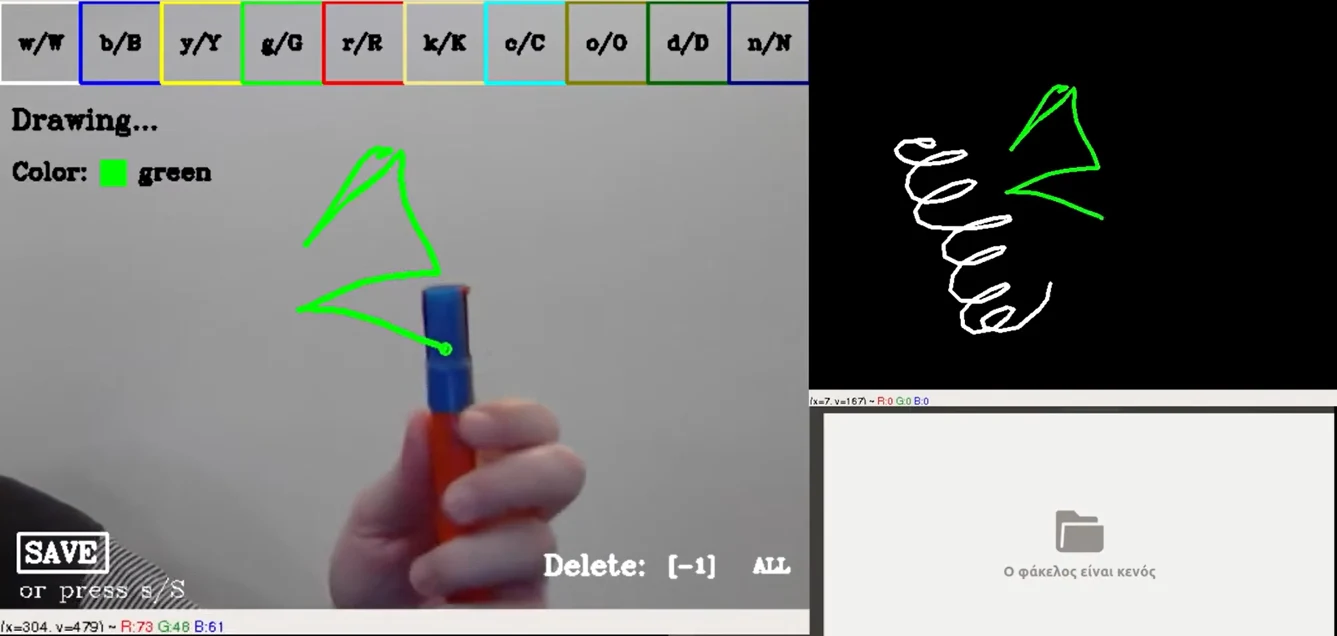
The first window (Frame), which is also the main one, shows what the camera “sees” with the addition of shapes (rectangles) in order to define regions of interests from which basic functions are being performed. The second one (Canvas) with black background shows only user’s drawing.
Define detection color
We are going to define the color that the camera will detect. Only when camera detects this color, the drawing action will be “active”.
# Define lower and upper detection color (here blue)
lower_color = np.array([35,46,106])
upper_color = np.array([86,168, 255])
We are setting color range in rgb (RedGreenBlue) format. In order to get this range we can use OpenCV’s trackbars.
A code snippet on how to set trackbars can be found on project Hand Deection and Finger Counting.
Color pallete
After defining our detection color, we are going to set some variables corresponding to our color pallete. These color options are placed at the top of the first window (Frame).
If user moves the desired (detection) color to one of the rectangles “containing” each pallete color, then this color is being selected for the drawing part.

The available pallete colors are the following:
- White
- Blue
- Green
- Red
- Yellow
- Khaki
- Olive
- Cyan
- Dgreen
- Naive
Each one of these rectangles contains a letter (small/Capital) corresponding to a color and has also a border of this color. For example the rectangle corresponding to green color contains g/G letters and has green border.
If user doesn’t want to move the detection color inside one of these rectangles in order to choose a pallete color, he can press the corresponding letter in order to perform the same action.
Drawing Part
Maximum contour and center
We find the maximum contour of the detection color.
# Transform color to HSV
hsv = cv2.cvtColor(frame.copy(), cv2.COLOR_BGR2HSV)

# Mask from lower and upper color range
mask = cv2.inRange(hsv, lower_color, upper_color)

# Find contours in mask
cnts = cv2.findContours(mask.copy(), cv2.RETR_EXTERNAL, cv2.CHAIN_APPROX_SIMPLE)
cnts = imutils.grab_contours(cnts)

# Find maximum contour
max_cnt = max(cnts, key = cv2.contourArea)
Then we find the center of the max contour and check if center is inside any of our regions of interests (rectangles).
# Center of max contour
M = cv2.moments(max_cnt)
if M["m00"] != 0:
  cX = int(M["m10"]/M["m00"])
  cY = int(M["m01"]/M["m00"])
  cv2.circle(frame, (cX, cY), 4, green, 2)
  center = (cX, cY)
As we said before when the detection color is being detected then the drawing is active show we can see it on sceen (both Frame and Canvas windows).In order to perform continuous drawings we keep a list of points (x,y)-values
pts = []
if "(cX, cY) is inside the desired frame regions then" :
  pts.append(center) # Append point to list
Erase drawings
If the center of max contour is inside the region containing “[-1]” then all drawings except the last one are being erased.
On the other hand if the center of max contour is inside (this means that user will move the detected color inside this region) the region containing word “ALL” then all drawings are being erased from both Frame and Canvas.
These last two regions are placed at the bottom right of the Frame window.
Save Drawing
If we want to save the current drawing we can use save_draw() function from file save_drawing.py. This function saves all drawings from black Canvas window in a local file with name drawings. If users wants to save the current drawing the he can move the detected color inside the region containing the word “SAVE” or press the letter s/S. This region is placed at the bottom left of the Frame window.
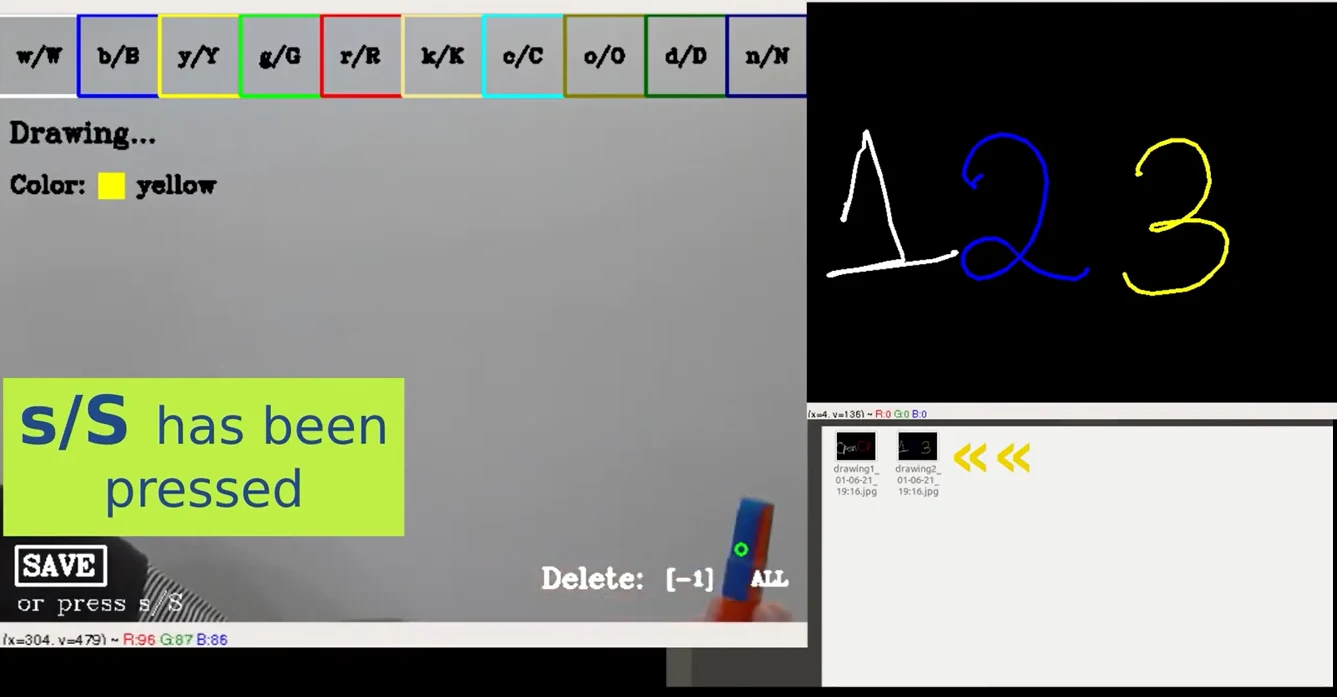
# Name of new drawing : "drawing(number)_day-month-year_hour:minutes.jpg"
new_drawing = 'drawing' + str(number_of_drawings+1) + '_' + date_time + '.jpg'

def save_draw(image):
  cv2.imwrite(dir_name + '/' + new_drawing, image)